Folder indexing
Folder indexing allows Everything to include any folder in the Everything index, such as folders on local drives, external drives, network drives, network shares, cloud folders, and virtual folders.
Add a folder to your Everything index
Indexed folder options
Troubleshooting
See also
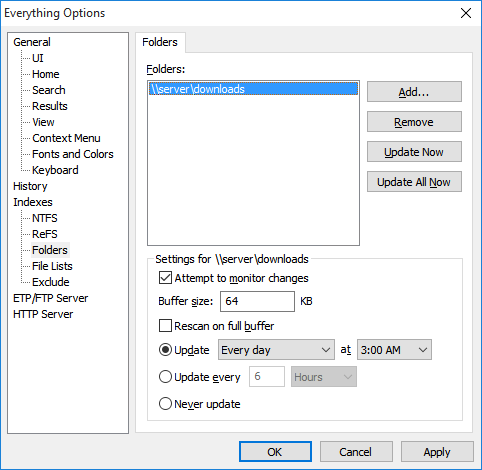
Add a folder to your Everything index
When a folder is first added, Everything indexes its contents.
This initial scan can take a few minutes.
Progress is displayed in the status bar.
You cannot search the folder until this initial indexing is complete.
Folder indexing does not require administrative privileges or the
Everything service.
Standard users can index folders when running the portable version of Everything without administrator access.
Because folder indexing is slower than native NTFS indexing, add NTFS volumes through the
NTFS options page.
Everything tracks folders by their path, not by their physical volume.
If two different drives are assigned the same drive letter (such as
E:), the folder index for one drive can overwrite the index for the other during a rescan.
To avoid this limitation, add FAT and exFAT volumes directly through the
FAT options page.
To add a folder to your Everything index:
- In Everything, from the Tools menu, click Options.
- Click the Folders tab on the left.
- Click Add....
- Select the folder to add and click Select Folder.
- Click OK.
To add a network share to your Everything index:
- In Everything, from the Tools menu, click Options.
- Click the Folders tab on the left.
- Click Add....
- Select the network share to add and click Select Folder.
For example: \\server\share
- Click OK.
To add a mapped network drive to your Everything index:
- In Everything, from the Tools menu, click Options.
- Click the Folders tab on the left.
- Click Add....
- Select the mapped network drive to add and click Select Folder.
- Click OK.
To add a cloud folder to your Everything index:
- In Everything, from the Tools menu, click Options.
- Click the Folders tab on the left.
- Click Add....
- Select the cloud folder to add and click Select Folder.
- Click OK.
To add the Control Panel to your Everything index:
- In Everything, from the Tools menu, click Options.
- Click the Folders tab on the left.
- Click Add Custom....
- Set the Path to:
Control Panel\All Control Panel Items
- Click OK.
To add a mobile phone to your Everything index:
- In Everything, from the Tools menu, click Options.
- Click the Folders tab on the left.
- Click Add....
- Select your mobile phone folder and click Select Folder.
- Click OK.
Indexed folder options
Everything monitors indexed folders for changes.
Everything schedules a daily rescan of the indexed folders to detect changes that have been missed while Everything was not running.
When a folder is being rescanned, the folder path is shown in the status bar on the right.
Double-click the folder path in the status bar to cancel the rescan.
Indexed folders remain in the Everything index when they are offline or unavailable.
Displaying icons and file information for offline folders can take several seconds to time out.
Press
F5 to refresh this cache when the folder is back online.
To rescan an indexed folder now:
- In Everything, from the Index menu, under the Rescan submenu, click the folder to rescan.
-or-
- In Everything, from the Tools menu, click Options.
- Click the Folders tab on the left.
- Select the folder.
- Click Rescan Now.
To rescan all indexed folders now:
- In Everything, from the Index menu, under the Rescan submenu, click Rescan All.
-or-
- In Everything, from the Tools menu, click Options.
- Click the Folders tab on the left.
- Click Rescan All Now.
To disable subfolder indexing:
- In Everything, from the Tools menu, click Options.
- Click the Folders tab on the left.
- Select the folder.
- Uncheck Index subfolders.
- Click OK.
To disable monitoring of indexed folders:
- In Everything, from the Tools menu, click Options.
- Click the Folders tab on the left.
- Select the folder.
- Uncheck Attempt to monitor changes.
- Click OK.
To set the change buffer size:
- In Everything, from the Tools menu, click Options.
- Click the Folders tab on the left.
- Select the folder.
- Set the Buffer size.
The default is 64 KB.
Mapped network drives and network shares are limited to 64 KB.
- Click OK.
To enable rescan when the change buffer is full:
- In Everything, from the Tools menu, click Options.
- Click the Folders tab on the left.
- Select the folder.
- Check Rescan on full buffer.
Typically, Everything will process the change buffer before it is filled.
- Click OK.
To enable fast rescan:
- In Everything, from the Tools menu, click Options.
- Click the Folders tab on the left.
- Select the folder.
- Check Fast rescan.
- Click OK.
Fast rescan only works for NTFS folders.
Enabling fast rescan for other file systems may cause Everything to miss changes.
To change scheduled rescan options:
- In Everything, from the Tools menu, click Options.
- Click the Folders tab on the left.
- Select the folder to configure.
- Choose one of the scheduled options:
- Rescan every day or on a specific day at a specific time.
- Rescan at a specific interval.
- Never rescan.
- Click OK.
If a scheduled rescan is missed, Everything rescans the folder the next time Everything starts.
To prevent Everything from performing a missed scheduled rescan on startup:
- In Everything, from the Tools menu, click Options.
- Click the Advanced tab on the left.
- In the Show settings containing search box, type:
rescan
- Select folder_update_rescan_asap
- Set the value to false.
- Click OK.
Folder rescanning will occur at the next scheduled time.
Troubleshooting
- Mapped network drives are not available
- Mapped network drives are not available when running Everything as administrator.
To run Everything as a standard user:
- In Everything, from the Tools menu, click Options.
- Click the General tab on the left.
- Check Everything Service. Make sure it shows a tick (✓), not a dash (-).
- Uncheck Run as administrator.
- Click OK.
- In Everything, from the File menu, click Exit.
- Restart Everything.
- Network does not expand
- The Network location in the Select Folder dialog does not expand.
To manually enter the network share or mapped network drive:
- In Everything, from the Tools menu, click Options.
- Click the Folders tab on the left.
- Click Add....
- Manually type in the network share or mapped network drive and click Select Folder.
- Click OK.
See also