Searching in Everything
Use the
search box at the top of the Everything window to search for files and folders.
Type in a partial filename.
Files and folders matching your search will be instantly displayed in the
result list.
A simple search
Combine simple searches
Search drives and folders
Search options
Advanced Search
Search Modifiers
Search Functions
Finding duplicates
Filters
Bookmarks
Macros
Search History
Home search
Search settings
Regular Expressions
Examples
See also
A simple search
Type a partial word to instantly find files and folders with that word in the filename.
For example:
invoice = find files and folders with
invoice in the filename
Use
wildcards to find files with a matching extension.
For example:
*.pdf = find PDF files only
Include a backslash (
\) to search the full path.
For example:
\downloads = find files and folders in a Downloads folder
Combine simple searches
Use a space to combine simple searches.
For example:
\downloads invoice *.pdf = find PDF files in a Downloads folder with
invoice in the filename
Use a vertical bar (
|) to search for either of the simple searches.
For example:
\downloads | \documents invoice *.pdf = find PDF files with
invoice in the filename in either a Downloads or Documents folder
Use an exclamation mark (
!) to exclude a simple search.
For example:
\documents !draft *.docx = find Microsoft Word files in a Documents folder without
draft in the filename
Use the
Advanced Search from the
Search menu to help build more complex searches.
To view the search syntax in Everything:
- In Everything, from the Help menu, click Search Syntax.
See
Search Syntax for more information.
Search drives and folders
To limit the results to a single drive, search for the drive letter followed by a colon (
:)
For example:
d: = find files and folders on your
D: drive
To search multiple drives at once, separate the drive letters with a vertical bar (
|)
For example:
c: | e: = find files and folders on your
C: or
E: drives
To exclude a drive from your search, prefix the drive letter with an exclamation mark (
!)
For example:
!e: = hide files and folders on your
E: drive
To search inside a specific folder, search for the folder path with a trailing backslash (
\)
For example:
C:\windows\media\ = find files and folders in
C:\Windows\Media
A trailing backslash (
\) specifies a folder.
Without the trailing backslash, the search can also match names that begin with the specified path.
For example:
C:\windows\media = can also match a file named
C:\Windows\Media2
Use double quotes (
") around paths that contain spaces.
For example:
"c:\program files\" = find files and folders in
C:\Program Files
Without double quotes, the space separates the search into two simple searches:
C:\Program Files searches for
C:\Program in the full path and
Files in the name.
Search options
The
Search menu contains options for controlling how Everything searches.
Enabled search options are shown on the right side of the
status bar.
Double-click a search option in the status bar to disable it.
- Match Case
- Match uppercase and lowercase letters exactly.
- Match Diacritics
- Match accent marks exactly.
- Match Whole Words
- Match complete words instead of matching text within words.
- Match Path
- Match against the full path instead of just the name.
- Match Prefix
- Match only the beginning of words.
- Match Suffix
- Match only the end of words.
- Ignore Punctuation
- Ignore punctuation in filenames.
- Ignore White-space
- Ignore whitespaces in filenames.
- Regular Expressions
- Enable Regular Expressions for advanced pattern matching.
- Everything
- Audio
- Compressed
- Document
- Executable
- Folder
- Image
- Video
- Search using the selected filter.
See Filters for more information.
Advanced Search
Use Advanced Search to build more complex searches without having to remember the search syntax.
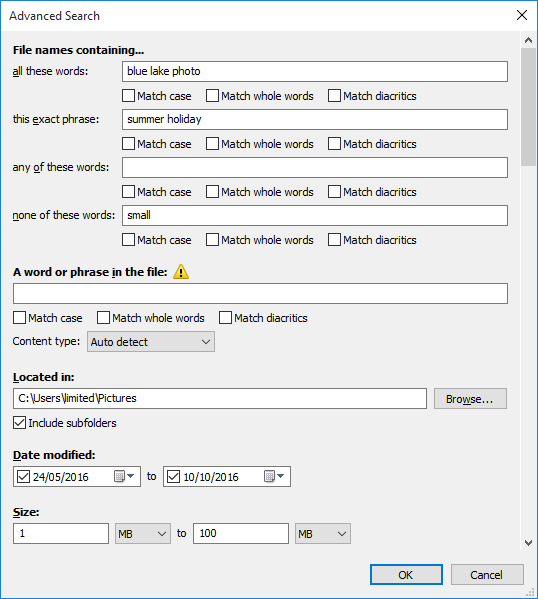
To show the advanced search dialog:
- In Everything, from the Search menu, click Advanced Search.
Search Modifiers
Search modifiers change how your search behaves.
They temporarily override search options set under the
Search menu.
For example:
case:README = finds files and folders with uppercase
README in the filename without having to enable
Match Case from the
Search menu
For a complete list of modifiers, see
Search Modifiers.
Search Functions
Search functions find files and folders by
properties.
For example:
size:>100mb = instantly find files and folders larger than 100 MB
date-modified:today = instantly find files and folders modified today
*.docx content:vanilla = find Word documents containing
vanilla
For a complete list of functions and syntax, see
Search Functions.
Finding duplicates
Everything can quickly find files and folders with duplicate names, sizes, dates, and other properties.
To find duplicate results, right-click a column header and click
Find <property> duplicates.
For example:
Right-click the
Size column header and click
Find Size duplicates.
See
Finding Duplicates for more information.
Filters
Filters are saved searches that can be activated without changing the search in the search box.
Everything includes several default filters, such as
Audio and
Video.
Filters can be activated from the
Search menu,
filter bar, or
filters sidebar.
The active filter is shown on the right side of the
status bar.
Double-click the active filter in the status bar to disable it.
To edit an existing filter:
- In Everything, from the Search menu, click Organize filters....
- Select a filter.
- Click Edit.
To add an extension to an existing default filter:
- In Everything, from the Search menu, click Organize filters....
- Select a filter.
- Click Edit.
- Add the extension to the end of the semicolon (
;) separated extension list in the filter search.
- Click OK.
To create a new filter:
- In Everything, from the Search menu, click Add to filters....
- Type in a Name.
- Set the filter Search.
- Click OK.
To show the filter bar:
- In Everything, from the View menu, click Filter bar.
To move the filter bar:
- Right-click the filter bar and click Move Filter Bar to Left/Right.
To show the filter sidebar:
- In Everything, from the View menu, click Filters.
Filters can also be assigned
macros that are treated as the filter search text when used in the search box.
Bookmarks
Bookmarks save the current search.
Opening a bookmark replaces the text in the search box and restores the saved settings.
Bookmarks can be opened from the
Bookmarks menu or
Bookmarks sidebar.
Unlike
filters, bookmarks replace the current search in the search box.
Bookmarks can also save the active filter, shown columns, sort order, view settings, and index settings.
To create a new bookmark from the current search:
- In Everything, from the Bookmarks menu, click Add to bookmarks....
- Type in a Name.
- Click OK.
To organize bookmarks:
- In Everything, from the Bookmarks menu, click Organize bookmarks....
To show the bookmarks sidebar:
- In Everything, from the View menu, click Bookmarks.
Bookmarks can also be assigned
macros that are treated as the bookmark search text when used in the search box.
Macros
Macros are custom keywords followed by a colon (
:) that are treated as the saved filter or bookmark search text.
For example, the default
Audio filter uses the
audio macro.
Searching for
audio: in the search box is treated as the full search text from the
Audio filter.
Macros make it easy to combine filters.
For example:
audio: | video: = find files matching either the
Audio or
Video filter.
To create a custom Bookmark macro:
- In Everything, from the Bookmarks menu, click Add to bookmarks....
- Type in a Name.
- Set a keyword for the Macro (for example:
mymacro).
- Click OK.
Using
mymacro: in the search box is treated as the search text defined in the bookmark.
Any search options, columns, or view settings saved in the bookmark are temporarily applied while
mymacro: is in the search box.
Default filter macros for searching by file type:
audio: = music and audio filesdoc: = documents, PDFs, and text filesexe: = programs and installersimage: = photos and graphicsvideo: = movies and video clipszip: = ZIP files and archives
Search History
Everything remembers your previous searches, previous session, recently closed tabs, and recently closed windows.
A search is added to the history when an action is performed on a result.
Recent searches can be accessed from the drop-down box to the right of the search box.
To find an older search:
- In Everything, from the History menu, click Find Search History.
To restore a previous session:
- In Everything, from the History menu, click Restore Previous Session.
To restore a previously closed tab:
- In Everything, from the History menu, under the Recently Closed Tabs submenu, click your tab.
To restore a previously closed window:
- In Everything, from the History menu, under the Recently Closed Windows submenu, click your window.
See
Search History for more information.
Home search
The home search is the default search when you first open an Everything search window or tab.
The home search can also save the active filter, shown columns, sort order, view settings, and index settings.
To restore the home search:
- In Everything, from the History menu, click Home.
To change the home search settings:
- In Everything, from the Tools menu, click Options.
- Click the Home tab.
- Set the desired search options, search, filter, columns, sort order, view settings, and index settings.
- Click OK.
Search settings
Configure search as you type, search box focus and selection, matching whole filename when using wildcards, and other search settings.
To manage your search settings:
- In Everything, from the Tools menu, click Options.
- Click the Search tab on the left.
See
Options for more information.
Regular Expressions
Regular expressions are a powerful way to search for patterns in filenames.
Everything uses Perl Compatible Regular Expressions (PCRE).
When regular expressions are enabled in the
Search menu, the normal Everything search syntax is disabled.
Search operators, wildcards, macros, modifiers, and functions are not supported.
To use regular expressions for part of a search, add the
regex: modifier before your search.
Standard Everything search syntax still works everywhere else.
For example:
*.jpg regex:^IMG_\d+ = find JPG files starting with
IMG_ followed by one or more digits
*.txt regex:^\d{4}-\d{2}-\d{2} = find TXT files starting with a date in YYYY-MM-DD format
Enclose the pattern in double quotes (
") when using spaces with the
regex: search modifier.
For example:
regex:" - \d\d - " = find filenames containing two digits enclosed by spaces and a hyphen
To view the regular expression syntax in Everything:
- In Everything, from the Help menu, click Regular Expression Syntax.
Regular expression syntax:
a|b | Matches a or b |
gr(a|e)y | Matches gray or grey |
. | Matches any single character |
[abc] | Matches a single character a, b or c |
[^abc] | Matches any single character except a, b or c |
[a-z] | Matches a single character in the range a to z |
[a-zA-Z] | Matches a single character in the range a to z or A to Z |
^ | Matches the start of the filename |
$ | Matches the end of the filename |
* | Matches the preceding element zero or more times |
? | Matches the preceding element zero or one times |
+ | Matches the preceding element one or more times |
{x} | Matches the preceding element x times |
{x,} | Matches the preceding element x or more times |
{x,y} | Matches the preceding element between x and y times |
( ) | Defines a marked subexpression and captures the text it matches |
\ | Escapes a special character |
Examples
The following examples demonstrate different ways to search in Everything, from simple searches to more advanced searches.
Simple boolean searches:
abc 123 = find files and folders with abc and 123 in the filename
abc|123 = find files and folders with abc or 123 in the filename
!abc = find files and folders without abc in the filename
Simple wildcard searches:
*.mp3 = find MP3 files
*.docx = find Microsoft Word files
*.jpg|*.png = find JPG or PNG files
Search drives and folders:
c: = find files and folders on the C: drive
d:|e: = find files and folders on the D: drive or E: drive
!f: = exclude files and folders from the F: drive
\downloads = find files and folders in a Downloads folder
!\appdata = exclude files and folders from an AppData folder
c:\windows\ = find files and folders in C:\Windows
"c:\program files\" = find files and folders in C:\Program Files
File and folder searches:
!. = find files and folders with no extension
file: = find files only
folder: = find folders only
empty: = find empty folders
Size searches:
size:>1gb = find files and folders larger than 1 GB
size:10mb..50mb = find files and folders between 10 MB and 50 MB
size:<1mb = find files and folders smaller than 1 MB
Date modified searches:
dm:today = find files and folders modified today
dm:7days = find files and folders modified in the last 7 days
dm:2026-09-04 = find files and folders modified on 2026-09-04
dm:>2022 = find files and folders modified after 2022
dm:2025-07-01..2026-06-30 = find files and folders modified in the 2025-2026 financial year
Duration searches:
*.mp3 length:>1hour = find MP3 files longer than 1 hour
*.mp3 length:10mins..30mins = find MP3 files between 10 minutes and 30 minutes long
*.mp3 length:<1min = find MP3 files shorter than 1 minute
Limit the search to a single folder:
parent:c:\windows = find files and folders directly in C:\Windows
parent:"c:\program files" = find files and folders directly in C:\Program Files
Advanced file and folder searches:
d:\music\ !child:mp3 = find folders in D:\music that do not have an MP3 file
Advanced regex filename searches:
regex:[^\x00-\x7f] = find filenames with non-ASCII characters
regex:[\x{1F300}-\x{1F6FF}\x{1F900}-\x{1F9FF}\x{2600}-\x{27BF}] = find filenames with emoji characters
Advanced file content searches:
*.txt content:<abc 123> = find TXT files where the content contains abc and 123
*.txt regex:content:^\d\d\d\d = find TXT files where the content starts with 4 digits
See also